Today I will explain how to update XML data from QTP.
We will use this XML file:
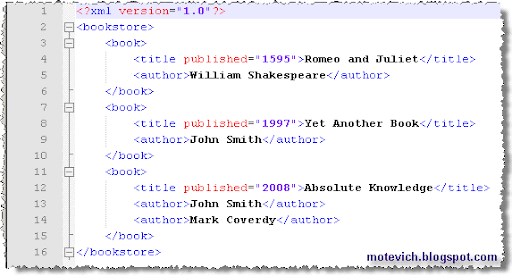 Note: You can download this XML file here.
Let's check how to update different values in above XML file:
- How to rename the title of first book?
The QTP script is:Const XMLDataFile = "C:\TestData.xml"And the result is:
Const XMLNewFile = "C:\TestData2.xml"
Set xmlDoc = CreateObject("Microsoft.XMLDOM")
xmlDoc.Async = False
xmlDoc.Load(XMLDataFile)
' update the title of the first book
Set node = xmlDoc.SelectSingleNode("/bookstore/book[0]/title")
node.Text = "Romeo and Juliet - Salvation"
' save changes
xmlDoc.Save(XMLNewFile)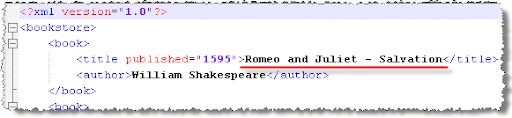 Note: The numeration begins from zero. That's why I use book[0] to access first item.
- How to change the year of second book?
I skip the opening and saving of XML file (see above QTP script). I show only the essence:' update the attribute of the second bookAnd the result is:
Set node = xmlDoc.SelectSingleNode("/bookstore/book[1]/title/@published")
node.Text = "2009" Note: Use @ to access an attribute of XML node.
- How to add new author add its new attribute?
QTP script:' select a parent nodeAnd the result is:
Set parentNode = xmlDoc.SelectSingleNode("/bookstore/book[2]")
' add a new author
Set newNode = xmlDoc.CreateElement("author")
newNode.Text = "Mr. Noname"
parentNode.AppendChild (newNode) As you can see, we've added "Mr. Noname" as the new author.
- How to add new attribute for author (XML node)?
QTP script:' select a parent nodeThe result is:
Set parentNode = xmlDoc.SelectSingleNode("/bookstore/book[2]")
' add its attribute
Set newAttrib = xmlDoc.CreateAttribute("bestseller")
newAttrib.Text = "yes"
parentNode.Attributes.SetNamedItem(newAttrib) New attribute of a boof and its value ("bestseller"="yes") have been added.
Well, the working with XML files from QTP is easy enough.
Summary:
- shown in QTP - how to change value of XML node
- shown in QTP - how to change value of attribute
- shown in QTP - how to add new XML node
- shown in QTP - how to add new attribute
Do you have any comments, dear reader? Please, leave them below the present article.
Thank you in advance :)
Related articles:
- QTP Recovery Scenario VIDEO
- QTP VBScript tutorial - Are you sure that 1+1=2?
- XML file reading from QTP
- All QTP visual tutorials
Do you like this QTP tutorial? Would you like to receive them in the future?
If yes, please subscribe to this blog RSS feed or by Email. (How to subscribe? VIDEO guide)
Do you know that you are free to use/copy/publish all my materials on your site/blog?

 Subscribe by Email
 Subscribe to RSS feed