Showing posts with label Video. Show all posts

QTP Videos & LoadRunner Videos


HP QTP (QuickTest Professional) Videos:

1QTP video tutorial - How to record QTP scriptQTP video tutorial - How to record QTP script

The present QTP (QuickTest Pro) video tutorial covers the following:
  • How to record QTP script for Web applications
  • What record and run settings should be used to run and execute QTP script
  • How to replay/execute QTP script
  • How to get results of executed QTP script
  • How to enable capturing screenshots during QTP scipt replaying
  • How to enable capturing video during QTP scipt replaying
2QTP video tutorial - How to capture dynamic textQTP video tutorial - How to capture dynamic text

The present QTP (QuickTest Pro) video tutorial covers the following:
  • How to use QTP to capture text from the page
  • Settings from QTP 'Output Text Value Properties'
  • Explanation for QTP Output value
  • Explanation for left & right boundaries
  • How to save QTP Output text value into QTP DataTable
  • Differences between Global and Local QTP DataTable sheets
  • How to read value from QTP DataTable
3QTP video tutorial - QTP DatatableQTP video tutorial - QTP Datatable

This QTP video shows how to work with DataTable.
You will learn different QTP DataTable concepts:
  • How to create QTP DataTable parameter using QTP Data Driver
  • How to create QTP DataTable parameter manually
  • How to read/write values from/to QTP DataTable
  • QTP script and DataTable execution settings
  • Global and local (action) sheets of DataTable
  • QuickTest Professional data-driven tests
4QTP video tutorial - QTP RegExp and dynamic link in QTPQTP video tutorial - QTP RegExp and dynamic link in QTP

This QTP video tutorial covers the following:
  • working with QTP Object Repository
  • identification properties of QTP objects
  • QTP RegExp in object's properties
  • how QTP identifies objects in application
  • and others...
5QTP video tutorial - QTP Descriptive ProgrammingQTP video tutorial - QTP DP (Descriptive Programming)

This QTP video shows and explains concepts of QTP Descriptive Programming:
  • What is QTP Descriptive Programming?
  • How to pass properties and their values directly to test object?
  • How to pass properties and their values using Description object?
  • How to select Descriptive Programming properties of a test object?
  • How t0 oconvert usual QTP script into QTP Descriptive Programming script?
  • How to debug QTP DP?
  • Different secrets of QTP Descriptive Programming
6QTP video tutorial - How to run QTP test from command lineQTP video tutorial - How to run QTP test from command line

Do you run your QTP tests suit manually?
What about running them on the schedule, for example nightly testing?

I will show the way how to do that - i.e. how to run QTP tests from command line.
Using that approach, you can execute your QTP tests on the schedule.
7QTP video tutorial - QTP Recovery ScenarioQTP video tutorial - QTP Recovery Scenario

This QTP video shows and explains how to create and work with QTP Recovery Scenarios.

For example, during an execution of QTP test, it can be interrupted by different windows, pop-ups, message boxes, etc. The problem is that they can appear at any time and you cannot predict these events.

QTP provides Recoverry Scenarios to process such unexpected events and errors.


HP LoadRunner Videos:
1LoadRunner video tutorial - Automated Correlation in LoadRunnerLoadRunner video tutorial - Automated Correlation in LoadRunner

Correlation is a key concept of HP LoadRunner. The present LoadRunner video tutorial explains how to correlate dynamic values in LoadRunner automatically:
  • How to find dynamic values to be correlated
  • How to compare recorded & replayed dynamic values
  • How to correlate them in LoadRunner
  • How to verify correlation
2LoadRunner video tutorial - Manual Correlation in LoadRunnerLoadRunner video tutorial - Manual Correlation in LoadRunner

The present LoadRunner video explains how to manually correlate dynamic values:
  • How to find dynamic values in a server response
  • How to correlate them in LoadRunner
  • How to verify the LoadRunner correlation manually
  • How to use LoadRunner correlation functions
3LoadRunner video tutorial - LoadRunner Parameters, part #1LoadRunner video tutorial - LoadRunner Parameters,
part 1 of 3 (Select next row = Sequential)


The present LoadRunner video tutorial covers the following:
  • How to create new LoadRunner parameter
  • How to use 'Simulate Parameter' feature
  • Settings on Parameter List dlg:
    Option 'Select next row' = 'Sequential'
    Option 'Update value on' = 'Each iteration'
    Option 'Update value on' = 'Each occurrence'
    Option 'Update value on' = 'Once'
  • How to view an output value of parameter
4LoadRunner video tutorial - LoadRunner Parameters, part #2LoadRunner video tutorial - LoadRunner Parameters,
part 2 of 3 (Select next row = Random)


The present LoadRunner video tutorial covers the following:
  • How to create new LoadRunner parameter
  • Settings on Parameter List dlg:
    Option 'Select next row' = 'Random'
    Option 'Update value on' = 'Each iteration'
    Option 'Update value on' = 'Each occurrence'
    Option 'Update value on' = 'Once'
  • How to view an output value of parameter
5LoadRunner video tutorial - LoadRunner Parameters, part #3LoadRunner video tutorial - LoadRunner Parameters,
part 3 of 3 (Select next row = Unique)


The present LoadRunner video tutorial covers the following:
  • Settings on Parameter List dlg:
    Option 'Select next row' = 'Unique'
    Option 'Update value on' = 'Each iteration'
    Option 'Update value on' = 'Each occurrence'
    Option 'Update value on' = 'Once'Option 'When out of values' = 'Abort Vuser'Option 'When out of values' = 'Continue in a cyclic manner'Option 'When out of values' = 'Continue with last value'
    'Allocate Vuser values in the Controller'
  • How to view an output value of LoadRunner parameter
6LoadRunner video tutorial - How to capture the whole Web pageLoadRunner video tutorial - How to capture the whole Web page

This LoadRunner video tutorial shows how to capture Web page.
Using this approach, you can get HTML source code of any Web page and then downloade it to a local file.
7LoadRunner video tutorial - How to record a file saving in LoadRunnerLoadRunner video tutorial - How to record a file saving in LoadRunner

In some cases, we need to save PDF (or other) file on local disk and process it (edit, parse, or compare with 'etalon' file).

The present LoadRunner video tutorial explains how to record PDF file saving in LoadRunner.
8LoadRunner video tutorial - How to check a downloaded fileLoadRunner video tutorial - How to check a downloaded file

Do you know how to check that a file or a page was downloaded successfully in LoadRunner?
The present LoadRunner video tutorial explains how to do that.

There is an easy and practical approach.


Dear readers, as you can see, I performed a huge work to prepare these videos.
In general, it took me ~ 60 hours for each video:
  • to think up examples (they should be simple)
  • to develop a scenario of video tutorial (I prefer logical and 'step-by-step' scenarios)
  • to record video (actually, not easy task)
  • to make, edit, check and recheck, and then again to remake movie (it should be ideal!)

I think, that my readers should get the perfect QTP and LoadRunner video tutorials. And I create such video tutorials.
That's why I ask you to help me - please, make donations. Your donation will mean that my videos were useful fot you and I'll be glad that you learnt something new.

It will motivate me to make new, even better videos!


Related articles:

--
Dmitry Motevich

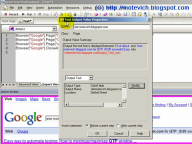
QTP DataTable - QTP video

This QTP video shows how to work with DataTable.
You will learn different QTP DataTable concepts:
  • How to create QTP DataTable parameter using QTP Data Driver
  • How to create QTP DataTable parameter manually
  • How to read/write values from/to QTP DataTable
  • QTP script and DataTable execution settings
  • Global and local (action) sheets of DataTable
  • QuickTest Professional data-driven tests
There is a sample screenshot from the present QTP video:


QTP DataTable - QTP video


Dear reader! Would you like to get new QTP videos?
Please, suggest new topics! What videos would you most interested in?

Also, I will be grateful for any shared information about QTP and others automated testing tools.

Feel free to cantact me.
My email is: Dmitry Motevich's email

--
Dmitry Motevich


Related articles:


Do you like this QTP Video tutorial? Would you like to receive them in the future?
If yes, please subscribe to this blog RSS feed or by Email. (How to subscribe? Video guide)


Do you like this QTP tutorial?
Feel free to use/copy/publish all my materials on your site/blog!


QTP DP (Descriptive Programming) - QTP video

QTP DP (Descriptive Programming) allows working without native QTP Object Repository. QTP Descriptive Programming provides test objects' properties and their values.
So, QTP uses Descriptive Programming statements to identify objects in AUT (application under test) during Run-time.

This QTP video shows and explains concepts of QTP Descriptive Programming:
  • What is QTP Descriptive Programming?
  • How to pass properties and their values directly to test object?
  • How to pass properties and their values using Description object?
  • How to select Descriptive Programming properties of a test object?
  • How t0 oconvert usual QTP script into QTP Descriptive Programming script?
  • How to debug QTP DP?
  • Different secrets of QTP Descriptive Programming
There is a sample screenshot from the present QTP video:
QTP DP (Descriptive Programming) screenshot

QTP DP (Descriptive Programming) - QTP video


Dear reader!
As usual, I need your help :)

Do you have ideas about new video tutorials? Could you suggest new topics? What videos would you most interested in?
Please remember - The content of this blog depends on your wishes and creative ideas!

So, feel free to cantact me.
My email is: Dmitry Motevich's email

--
Dmitry Motevich


Related articles:


Do you like this QTP Video tutorial? Would you like to receive them in the future?
If yes, please subscribe to this blog RSS feed or by Email. (How to subscribe? Video guide)


Do you know that you are free to use/copy/publish all my materials on your site/blog?


Manual Correlation in LoadRunner - Video

In previous LoadRunner video (Automated Correlation in LoadRunner) I shown how to use Automated Correlation. The present LoadRunner video explains how to manually correlate dynamic values:
  • How to find dynamic values in a server response
  • How to correlate them in LoadRunner
  • How to verify the correlation
There is a screenshot from the present LoadRunner video:
Manual Correlation in LoadRunner

Automated Correlation in LoadRunner - Video

Correlation is a key concept of HP LoadRunner. The present LoadRunner video tutorial explains how to correlate dynamic values in LoadRunner automatically:
  • How to find dynamic values to be correlated
  • How to compare recorded & replayed dynamic values
  • How to correlate them in LoadRunner
  • How to verify correlation
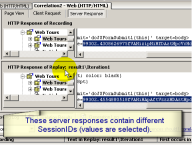
There is a screenshot from the present LoadRunner video:
Different server responses
Also, this LoadRunner video explains concepts of Correlation and how Correlation works.
Video tutorial demonstrates LoadRunner Correlation by the example of HP Web Tours application, which is shipped with LoadRunner. So, you can repeat and learn all shown actions yourself.

Automated Correlation in LoadRunner - Video


Related articles:


Do you like these LoadRunner video? Would you like to receive them in the future?
If yes, please subscribe to this blog RSS feed or by Email. (How to subscribe? Video guide)


Do you
know that you are free to use/copy/publish all my materials on your site/blog?


LoadRunner video - How to check manually a downloaded file

Do you know how to check that file or page was downloaded successfully in LoadRunner?
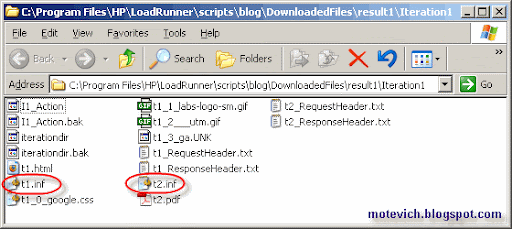
The present LoadRunner video tutorial explains how to do that. All you need is to check LoadRunner snapshot files (inf-files) located in LoadRunner script folder:
LoadRunner script files
LoadRunner video - How to check manually a downloaded file


Related articles:


Do you like this LoadRunner video tutorial? Would you like to receive them in the future?
If yes, please subscribe to this blog RSS feed or by Email. (How to subscribe? Video guide)


Do you know that you are free to use/copy/publish all my materials on your site/blog?


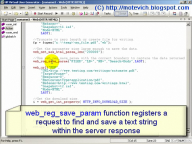
LoadRunner video - How to capture the whole Web page?

This LoadRunner video tutorial shows how to capture Web page.
Using this approach, you can get HTML source code of any Web page and then downloade it to a local file.

LoadRunner video - How to capture the whole Web page?


There is a final LR script for capturing and saving Web page:
int hFile;
char *szFileName = "c:\\page.html";

//Mark that we will capture the whole body of Web page
//Note: Mark that web_reg_save_param should be placed *before* web_url
web_reg_save_param("prmPage", "LB=", "RB=", "Search=Body", "RelFrameID=1", LAST);

web_url("labs.google.com", "URL=http://labs.google.com/", LAST);

//Web page has been captured, so print it out
lr_output_message("Page is: \r\n%s", lr_eval_string("{prmPage}"));

//Truncate to zero length or create file for writing.
if ((hFile = fopen(szFileName, "wb")) == NULL)
{
    lr_error_message("Cannot open %s", szFileName);
    return LR_FAIL;
}

//Write captured Web page to an output file
fprintf(hFile, "%s", lr_eval_string("{prmPage}"));

//Close the file pointer.

fclose(hFile);


Related articles:


Do you like this LoadRunner video tutorial? Would you like to receive them in the future?
If yes, please subscribe to this blog RSS feed or by Email. (How to subscribe? VIDEO guide)


QTP Recovery Scenario VIDEO

This QTP video shows and explains how to create and work with QTP Recovery Scenarios.

For example, during an execution of QTP test, it can be interrupted by different windows, pop-ups, message boxes, etc. The problem is that they can appear at any time and you cannot predict this event.

I've shown how to create QTP Recovery Scenario for the following message box:
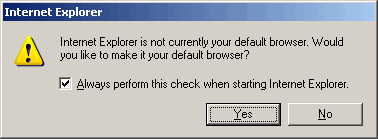
Message box in QTP
This message box can be shown or not, depending on the current system settings.
QTP provides Recoverry Scenarios to process such unexpected events and errors.


QTP Recovery Scenario VIDEO


Related articles:


Do you like this QTP video? Would you like to receive them in the future?
If yes, please subscribe to this blog RSS feed or by Email. (How to subscribe? VIDEO guide)


Do you know that you are free to use/copy/publish all my materials on your site/blog?


QTP RegExp VIDEO - How to click dynamic link?

The present QTP video explains how to click dynamic links, which change their text.
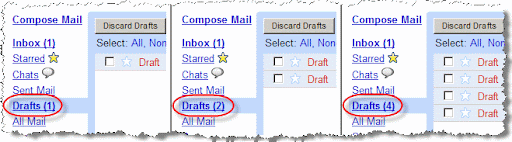
For example, the number of email drafts can vary:
Dynamic links - value changes
QuickTest Professional cannot know in advance which text will be present.

So, how QTP can click such dynamic links?
There are several possible solutions:
  1. We can use QTP Regular Expression to match dynamic link.
  2. We can use QTP DP (Descriptive Programming) in to find the link during run-time.
  3. We can use others properties of the dynamic link to identify it

The present QTP video shows first approach.
The tutorial covers the following:
  • working with QTP Object Repository
  • identification properties of QTP objects
  • QTP RegExp in object's properties
  • how QTP identifies objects in application
  • and others...
QTP RegExp VIDEO - How to click dynamic link?
--
Dmitry Motevich

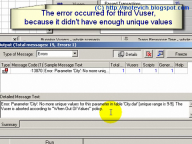
LoadRunner VIDEO tutorial - Parameters part3 ('Select next row' = 'Unique')

Here is last part of LoadRunner video tutorial on working with LoadRunner parameters.
It explains different combinations of the parameter setting 'Select next row' = 'Unique'.

Note:

LoadRunner parameters #1 - video tutorial is available here.
LoadRunner parameters #2 - video tutorial is available here.


The present LoadRunner video tutorial covers the following:
  • Settings on Parameter List dlg
    Option 'Select next row' = 'Unique'
    Option 'Update value on' = 'Each iteration'
    Option 'Update value on' = 'Each occurrence'
    Option 'Update value on' = 'Once'
    Option 'When out of values' = 'Abort Vuser'
    Option 'When out of values' = 'Continue in a cyclic manner'
    Option 'When out of values' = 'Continue with last value'
    'Allocate Vuser values in the Controller'
  • How to view an output value of LoadRunner parameter
LoadRunner parameters explained
part 3 of 3 (Select next row = Unique)

LoadRunner VIDEO tutorial - Parameters part2 ('Select next row' = 'Random')

I've prepared the second part of LoadRunner video tutorial on working with LoadRunner parameters.
Note: First part of LoadRunner parameters - video tutorial is available here.

The present LoadRunner video tutorial covers the following:
  • How to create new LoadRunner parameter
  • Settings on Parameter List dlg
    Option 'Select next row' = 'Random'
    Option 'Update value on' = 'Each iteration'
    Option 'Update value on' = 'Each occurrence'
    Option 'Update value on' = 'Once'
  • How to view an output value of parameter
LoadRunner parameters explained
part 2 of 3 (Select next row = Random)

LoadRunner VIDEO tutorial - Parameters part1 ('Select next row' = 'Sequential')

I've prepared new LoadRunner video tutorial on working with LoadRunner parameters.
The present LoadRunner video tutorial covers the following:
  • How to create new LoadRunner parameter
  • How to use 'Simulate Parameter' feature
  • Settings on Parameter List dlg
    Option 'Select next row' = 'Sequential'
    Option 'Update value on' = 'Each iteration'
    Option 'Update value on' = 'Each occurrence'
    Option 'Update value on' = 'Once'
  • How to view an output value of parameter

LoadRunner VIDEO - How to record PDF file saving?

One LoadRunner user asked me - How to record PDF file saving in LoadRunner?

Earlier, I explained that LoadRunner does not record client side activities!
That means, that LoadRunner records PDF file transferring ('cause it is a network activity) and does not record PDF file saving (which does not generate any network traffic).

In some case, we need to save PDF (or other) file on local disk and process it (edit, parse, or compare with 'etalon' file).
The present LoadRunner video tutorial explains how to record PDF file saving in LoadRunner.

How to record PDF file saving in LoadRunner? - LoadRunner video


This is a first LoadRunner script from the above LoadRunner video tutorial.
Note: this script is based on HP's article #11766 - How to verify download of a file in Web scripts (login to HP required to access).
int fp;
long i;

web_url("writings.html",
"URL=http://www.testing.com/writings.html",
"TargetFrame=",
"Resource=0",
"RecContentType=text/html",
"Referer=",
"Snapshot=t1.inf",
"Mode=HTML",
LAST);

//Truncate to zero length or create file for writing.
fp = fopen("c:\\temp\\my_file.pdf","wb");

//Set the parameter size large enough to save the data.
web_set_max_html_param_len("200000");

//Use web_reg_save_param with the correct boundary to capture the data returned by the server.
web_reg_save_param("FILED","LB=","RB=","Search=Body",LAST);

web_url("PDF",
"URL=http://www.testing.com/writings/automate.pdf",
"TargetFrame=",
"Resource=0",
"RecContentType=application/pdf",
"Referer=http://www.testing.com/writings.html",
"Snapshot=t2.inf",
"Mode=HTML",
LAST);

//Get the download size.
i = web_get_int_property(HTTP_INFO_DOWNLOAD_SIZE);

//Write the data saved to an output file.
fwrite(lr_eval_string("{FILED}"), i, 1, fp);

//Close the file pointer.
fclose(fp);
As I shown in LoadRunner video, above script works incorrectly.


This is an improved LoadRunner script which captures and saves PDF file correctly:
long fp;
char *data;
unsigned long prmLen;

web_url("writings.html",
"URL=http://www.testing.com/writings.html",
"TargetFrame=",
"Resource=0",
"RecContentType=text/html",
"Referer=",
"Snapshot=t1.inf",
"Mode=HTML",
LAST);

//Truncate to zero length or create file for writing.
fp = fopen("c:\\temp\\my_file.pdf","wb");

//Set the parameter size large enough to save the data.
web_set_max_html_param_len("200000");

//Use web_reg_save_param with the correct boundary to capture the data returned by the server.
web_reg_save_param("FILED","LB=","RB=","Search=Body",LAST);

web_url("PDF",
"URL=http://www.testing.com/writings/automate.pdf",
"TargetFrame=",
"Resource=0",
"RecContentType=application/pdf",
"Referer=http://www.testing.com/writings.html",
"Snapshot=t2.inf",
"Mode=HTML",
LAST);

//Get the download size.
lr_eval_string_ext("{FILED}", strlen("{FILED}"), &data, &prmLen, 0, 0, -1);

//Write the data saved to an output file.
fwrite(data, prmLen, 1, fp);

//Close the file pointer.
fclose(fp);


Related articles:


Do you like this LoadRunner visual tutorial? Would you like to receive them in the future?
If yes, please subscribe to this blog RSS feed or by Email. (How to subscribe? VIDEO guide)


--
Dmitry Motevich

How to run QTP test from command line?

Do you run your QTP tests suit manually?
What about running them on the schedule, for example nightly testing?

I will show the way how to do that - i.e. how to run QTP tests from command line.
Using that approach, you can execute your QTP tests on the schedule.

How to run QTP test from command line - QTP video tutorial


This is a script, which runs QTP tests (from the above QTP video tutorial):
Dim qtApp 'As QuickTest.Application ' Declare the Application object variable
Dim qtTest 'As QuickTest.Test ' Declare a Test object variable

Set qtApp = CreateObject("QuickTest.Application") ' Create the Application object
qtApp.Launch ' Start QuickTest
qtApp.Visible = True ' Make the QuickTest application visible

qtApp.Open "C:\Temp\simple_test", True ' Open the test in read-only mode

' set run settings for the test
Set qtTest = qtApp.Test
qtTest.Run ' Run the test

WScript.StdOut.Write "Status is:" & qtTest.LastRunResults.Status ' Check the results of the test run
qtTest.Close ' Close the test

Set qtResultsOpt = Nothing ' Release the Run Results Options object
Set qtTest = Nothing ' Release the Test object
Set qtApp = Nothing ' Release the Application object

Happy QTP scripting, dear readers! :)


Related articles:


Do you like this QTP visual tutorial? Would you like to receive them in the future?
If yes, please subscribe to this blog RSS feed or by Email. (How to subscribe? VIDEO guide)


How to subscribe to my blog

Today I plan to show and explain - How you can subscribe to updates from my blog.

Why you should subscribe?
The answer is simple - subscription allows to save the time, when you search for new articles on my blog.

You will receive notifications (by Email or RSS) when new articles will be published on my blog.
And you don't need to visit my blog every day and check - did I post something new or not? :)

Well, there are 2 ways to subscribe:
This video will help you to subscribe.

How to subscribe to blog - video guide


Thank you, my readers.
I hope, Email & RSS subscriptions will save your time and improve your productivity.

--
Dmitry

QTP VIDEO - How to capture dynamic text?

This QTP video tutorial explains how to use QTP Text Output to capture dynamic text.

The present QTP (QuickTest Pro) video tutorial covers the following:
  1. How to use QTP to capture text from the page
  2. Settings from QTP 'Output Text Value Properties' dialog
  3. Explanation for QTP Output value
  4. Explanation for left & right boundaries
  5. How to save QTP Output text value into QTP DataTable
  6. Differences between Global and Local QTP DataTable sheets
  7. How to read value from QTP DataTable
How to capture dynamic text


Dear Reader!
  • Do you have comments on this QTP video tutorial?
  • Do you have suggestions for future QTP video tutorials?
  • Do you have interesting thoughts to share with us?
  • Do you have plans on how to cooperate with me and my blog?
  • Do you have bright ideas on automated testing?
If your answer is 'Yes', please leave your comment to my blog.
Or send me email. You can see my email at the end of this video tutorial.

Thank you in advance!

P.S. Your opinion is extremely important for me...


Related articles:


Do you like this QTP visual tutorial? Would you like to receive them in the future?
If yes, please subscribe to this blog RSS feed or by Email. (How to subscribe? VIDEO guide)


How to record QTP script - QTP VIDEO tutorial

I'm glad to introduce my new visual tutorial.
This is QTP (QuickTest Pro) video tutorial and it explains how to record QTP scripts.

The present QTP (QuickTest Pro) video tutorial covers the following:
  • How to record QTP script for Web applications
  • What record and run settings should be used to run and execute QTP script
  • How to replay/execute QTP script
  • How to get results of executed QTP script
  • How to enable capturing screenshots during QTP scipt replaying
  • How to enable capturing video during QTP scipt replaying
How to record QTP script - video tutorial - Part 1


How to record QTP script - video tutorial - Part 2


This is my first attempt to create Flash presentation :)
In the future I will create video presentations on my favourite automated testing tools - QTP (QuickTest Pro), LR (LoadRunner), and Selenium (cross-platform automated testing tool for Web applications).

So, my main goal is to get feedback on the way I plan to evolve my blog, dear readers.


Related articles:


Do you like these QuickTest Professional visual tutorials? Would you like to receive them in the future?
If yes, please subscribe to this blog RSS feed or by Email. (How to subscribe? VIDEO guide)


--
Thank you for visiting and reading, dear readers!
Dmitry Motevich